


Google Postmaster Tools is a free tool from Google that shows you how Gmail rates your emails. Spam rate, authentication, compliance status.[2] Here you will learn how to set it up and which dashboards matter.
01What are Google Postmaster Tools?
- Topic
- Monitoring tool
- Key point
- postmaster.google.com
Google Postmaster Tools (GPT) is a free monitoring tool at postmaster.google.com. It shows you detailed data on how Gmail handles your emails: how often are they reported as spam, do they pass authentication and are they rejected?[2]
The tool is especially relevant because Gmail is one of the largest email providers in the world. If your emails have problems at Gmail, this affects a large share of your recipients.
02Setup in 3 steps
- Topic
- Setup in 3 steps
- Key point
- Verify domain via DNS
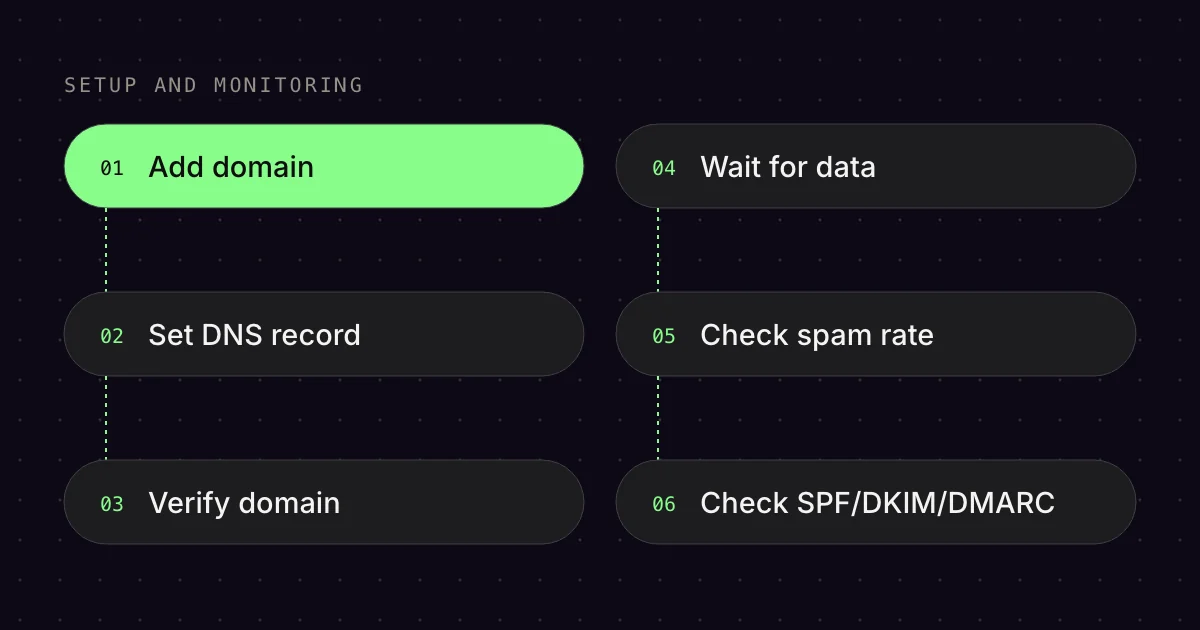
Step 1: Add your domain
Go to postmaster.google.com and sign in with a Google account.[1] On the “Manage Domains” page, click “Add new domain” in the top right and enter the domain your emails are authenticated with via DKIM or SPF (e.g. yourshop.com).[1]
Step 2: Verify your domain
Google gives you a DNS TXT record that you add at your DNS provider.[1] This proves that you own the domain. According to Google, verification usually works immediately, but it can take up to 10 minutes for the status to update.[1]
Step 3: Wait for data
Postmaster Tools only shows data once you reach a certain sending volume to Gmail addresses.[2] Google does not give an exact number, but experience shows that you need at least a few hundred emails per day to Gmail recipients before the dashboards show data.
03The most important dashboards
- Topic
- Spam rate
- Key point
- always below 0.10%
Spam rate
Shows the percentage of your emails that Gmail users mark as spam.[2] Google recommends keeping the spam rate consistently below 0.10%.[3] Anything above 0.30% is considered critical and can lead to delivery problems.
Since February 2024, Google has required all senders to keep their spam rate below 0.30%.[3] If you send more than 5,000 emails per day to Gmail and are above that level, Google will not help you with delivery problems.[4] This is a hard requirement, not just a recommendation.
Important: The spam rate in Postmaster Tools is based on actual “Report spam” clicks by Gmail users.[2] It is not the same as spam placement. An email can end up in spam without anyone having reported it.
Domain Reputation
In the old interface, Google rates your domain on a four-level scale. In the new version, Postmaster Tools v2, this dashboard no longer exists, and Google has announced a replacement.[7] The four levels:
- High: Very low spam rates, good authentication. Your emails are delivered reliably.
- Medium: Occasionally elevated spam rates. Delivery is generally okay but can fluctuate.
- Low: Regularly high spam rates. Emails end up in spam more often.
- Bad: Consistently high spam rates. Serious delivery problems.
The goal is a High reputation. If it drops to Low or Bad, you need to take action: clean your list, reduce your sending volume, improve engagement.
IP Reputation
Similar to domain reputation, but based on the IP address of the sending server. This dashboard also only exists in the old interface.[7] If you send via Klaviyo or another ESP, you either share the IP with other senders (shared IP) or have your own (dedicated IP).[5] With shared IPs you have less control.
Authentication
Shows what percentage of your emails pass SPF, DKIM and DMARC.[2] Goal: 100% for all three. If you see values below 100% here, something is wrong with your DNS configuration.
Encryption
Shows the share of emails transmitted with TLS encryption.[2] Modern ESPs like Klaviyo send via TLS by default, so this value should be close to 100%.
New in Postmaster Tools v2: compliance status. This dashboard shows you whether your emails meet Google’s sender requirements, such as SPF and DKIM, DNS records, encryption and spam rate. For bulk senders, DMARC and one-click unsubscribe are added. Each requirement is marked “Compliant”, “Needs work” or “No data found”.[2]
04What should you do if there are problems?
- Topic
- Spam rate too high
- Key point
- Clean your list
- Spam rate too high: Clean your list (remove inactive contacts), improve segmentation (only send to engaged contacts), check your content
- Spam rate rising or compliance status shows “Needs work”: Temporarily reduce your sending volume, send only to your most engaged segments, activate a Sunset Flow
- Authentication below 100%: Check your SPF, DKIM and DMARC records (see our article on DMARC, SPF and DKIM)
Conclusion: Google Postmaster Tools is a must for anyone doing email marketing. Setup takes 5 minutes and gives you insights you cannot get anywhere else. Keep a particularly close eye on the spam rate and the compliance status.
FAQ
Why is Google Postmaster Tools not showing any data?
Usually the domain has not been verified yet, or you send too few emails to personal Gmail addresses. Google hides data on low-volume days to protect privacy. In addition, the figures are not shown in real time but are usually updated within 24 hours.
Which domain do I enter in Postmaster Tools if I send with Klaviyo?
Google requires the domain your emails are authenticated with via DKIM or SPF. Klaviyo advises connecting your own sending domain first, meaning your sender domain in Klaviyo. You can then add subdomains as well. If the main domain is already verified, you do not need to confirm it again.
What spam rate is still acceptable at Gmail?
Google recommends keeping the spam rate consistently below 0.10% and never reaching 0.30% or more. The rate is calculated daily. Bulk senders above 0.30% get no help from Google with delivery problems until the rate has stayed below that level for seven days in a row.
Why don’t I see any spam complaints from Gmail in Klaviyo?
Gmail does not report spam complaints directly to sending services like Klaviyo. That is why Klaviyo recommends setting up Google Postmaster Tools for your domain. There you see the daily spam rate of your Gmail recipients. For individual campaigns, the Feedback Loop dashboard also helps if your emails contain a so-called Feedback-ID in the header.
What does the compliance status in Postmaster Tools show?
The dashboard shows whether your emails meet Google’s sender requirements, such as SPF and DKIM, DNS records, encryption and spam rate. For bulk senders, DMARC, one-click unsubscribe and processing unsubscribes promptly are added. Each requirement is marked “Compliant”, “Needs work” or “No data found”.
Sources
- Gmail Help (Google): “Set up Postmaster Tools”, undated. https://support.google.com/mail/answer/9981691 (accessed 17 Oct 2026)
- Gmail Help (Google): “Postmaster Tools dashboards”, undated. https://support.google.com/mail/answer/14668346 (accessed 17 Oct 2026)
- Gmail Help (Google): “Email sender guidelines”, undated. https://support.google.com/mail/answer/81126 (accessed 17 Oct 2026)
- Gmail Help (Google): “Email sender guidelines FAQ”, undated. https://support.google.com/mail/answer/14229414 (accessed 17 Oct 2026)
- Klaviyo Help Center: “Understanding dedicated vs. shared IPs”, updated 31 Mar 2026. https://help.klaviyo.com/hc/en-us/articles/7675517826587 (accessed 17 Oct 2026)
- Klaviyo Help Center: “Email deliverability FAQs”, updated 31 Mar 2026. https://help.klaviyo.com/hc/en-us/articles/16425927010075 (accessed 17 Oct 2026)
- Gmail Help (Google): “Learn about the deprecation of the old Postmaster Tools interface”, undated. https://support.google.com/mail/answer/16594218 (accessed 17 Oct 2026)
This article is by Emailfy. We set up Klaviyo for Shopify stores, which is exactly what we write about here. How we work: Editorial guidelines.